.png)
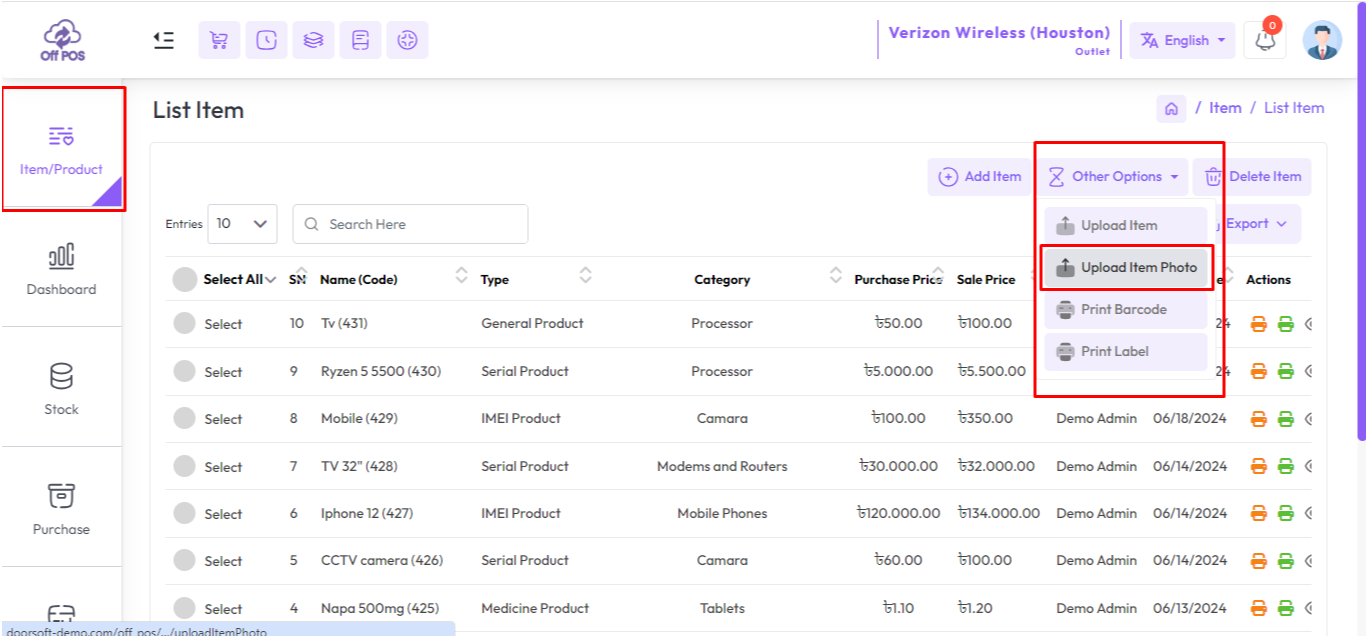
To Item Image Bulk Upload for general product expand Item/Product from the left sidebar, Click on the List Item menu, and click on the "Other Option" button after that click on "Item Image Bulk Upload".
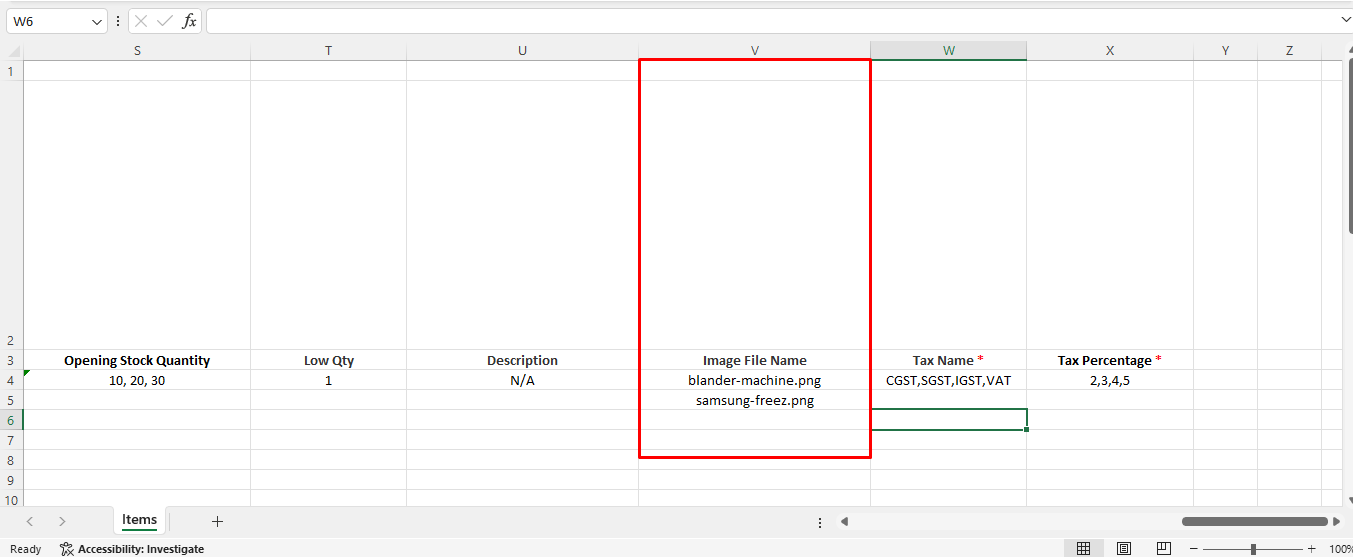
You will see a field "Image File Name" in the V column in the Item_Upload.xlsx excel file.
Here you will see the names of the images of the item
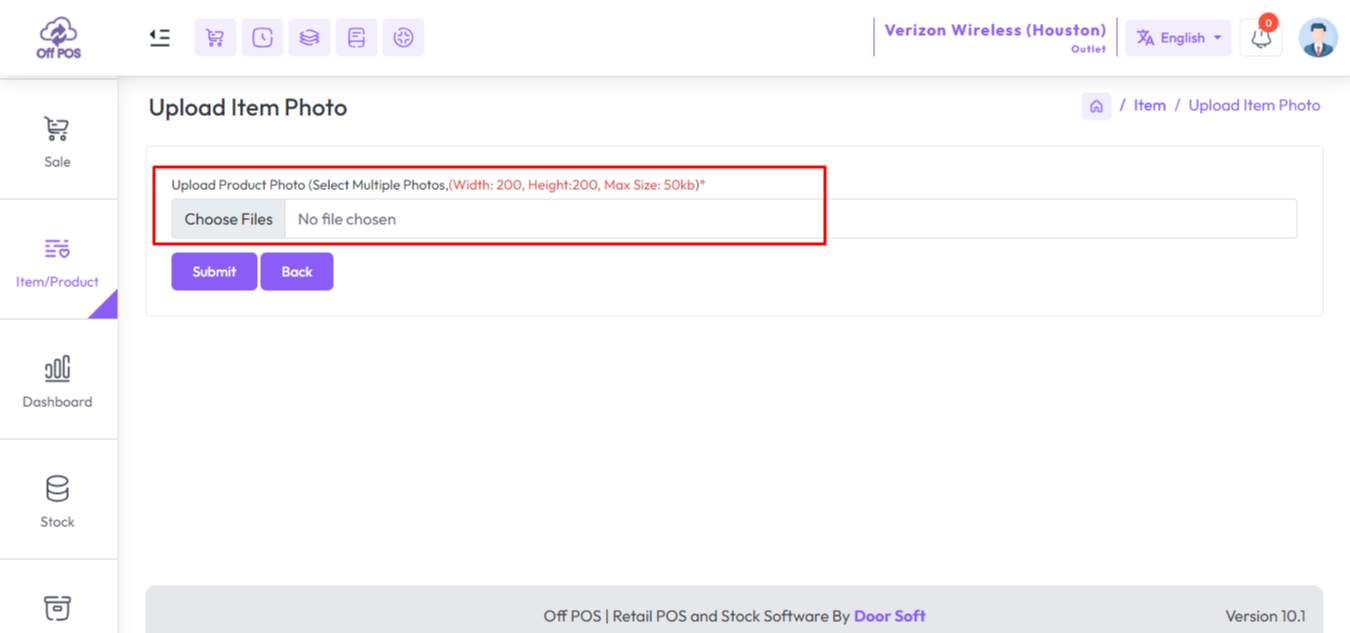
Click on the upload field.
Rename the images that you want to upload as the name given in Excel, each image must be according to that name.
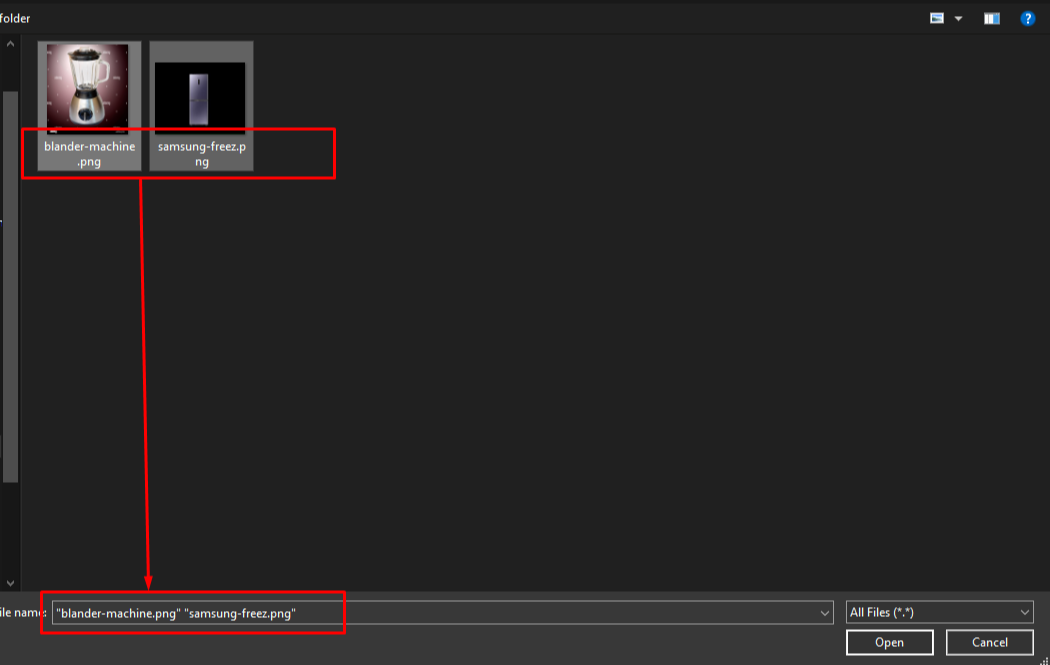
You can select/upload multiple images, after selecting that hist the submit button to save this images
Was this page helpful?
Thank you for your feedback!
Please Login First
Zimozo - Support Ticketing, Knowledgebase, Live Chat and CRM
Comments (00)