.png)
In this section, you can manage the Raw Material. You can add, edit, and delete Raw Material.
To access the Raw Material List, navigate to the “Item Setup” section from the left sidebar and click on "Raw Material List".
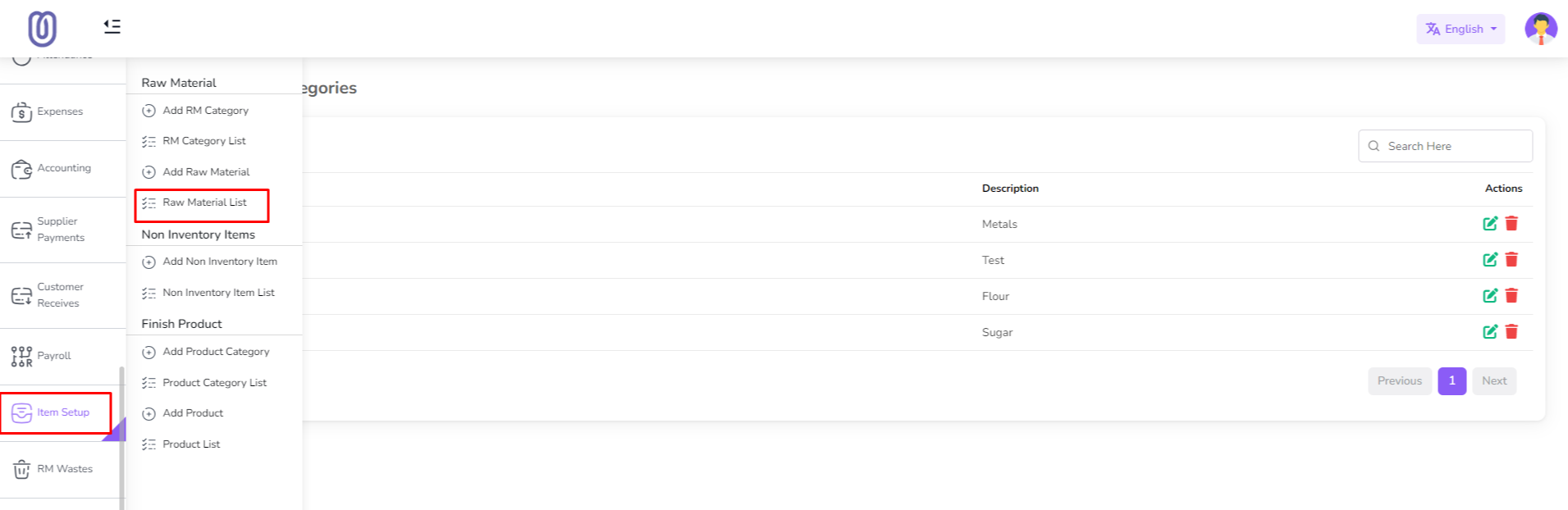
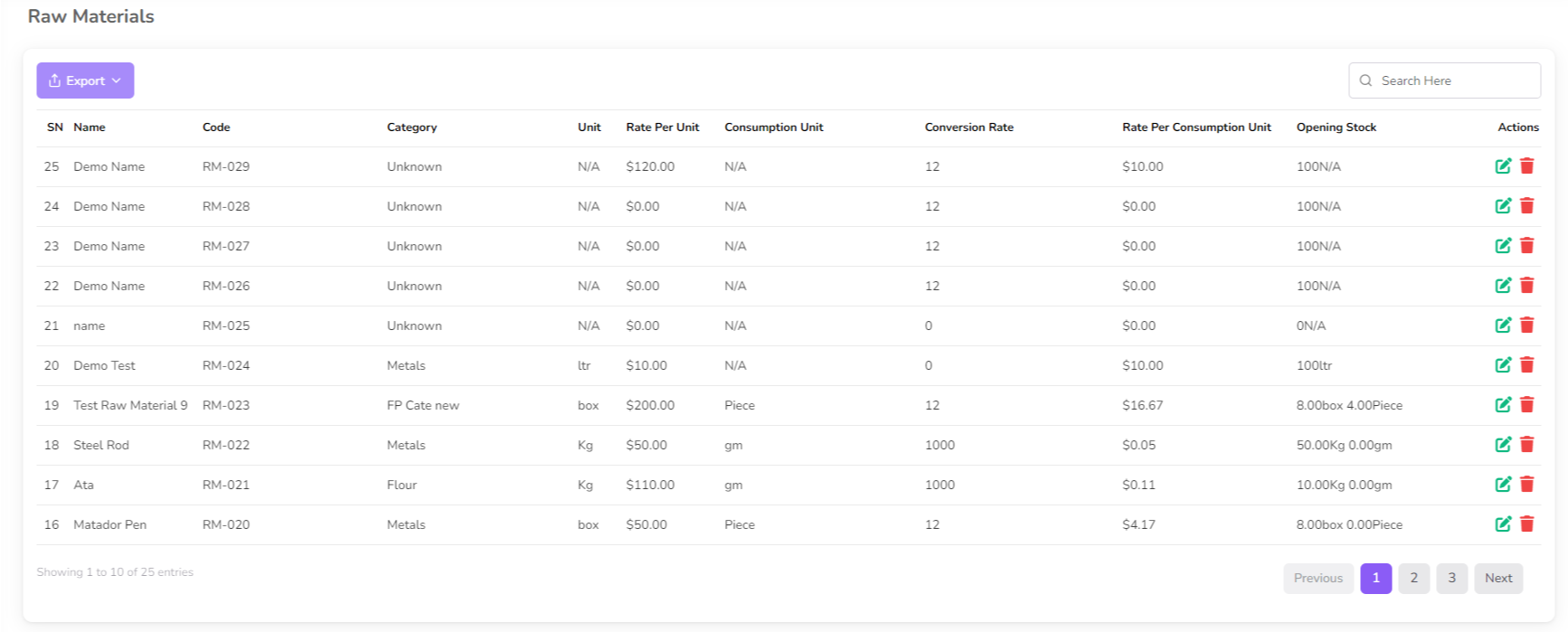
After clicking on "Raw Material List", you can view the Raw Material list with Raw Material details.
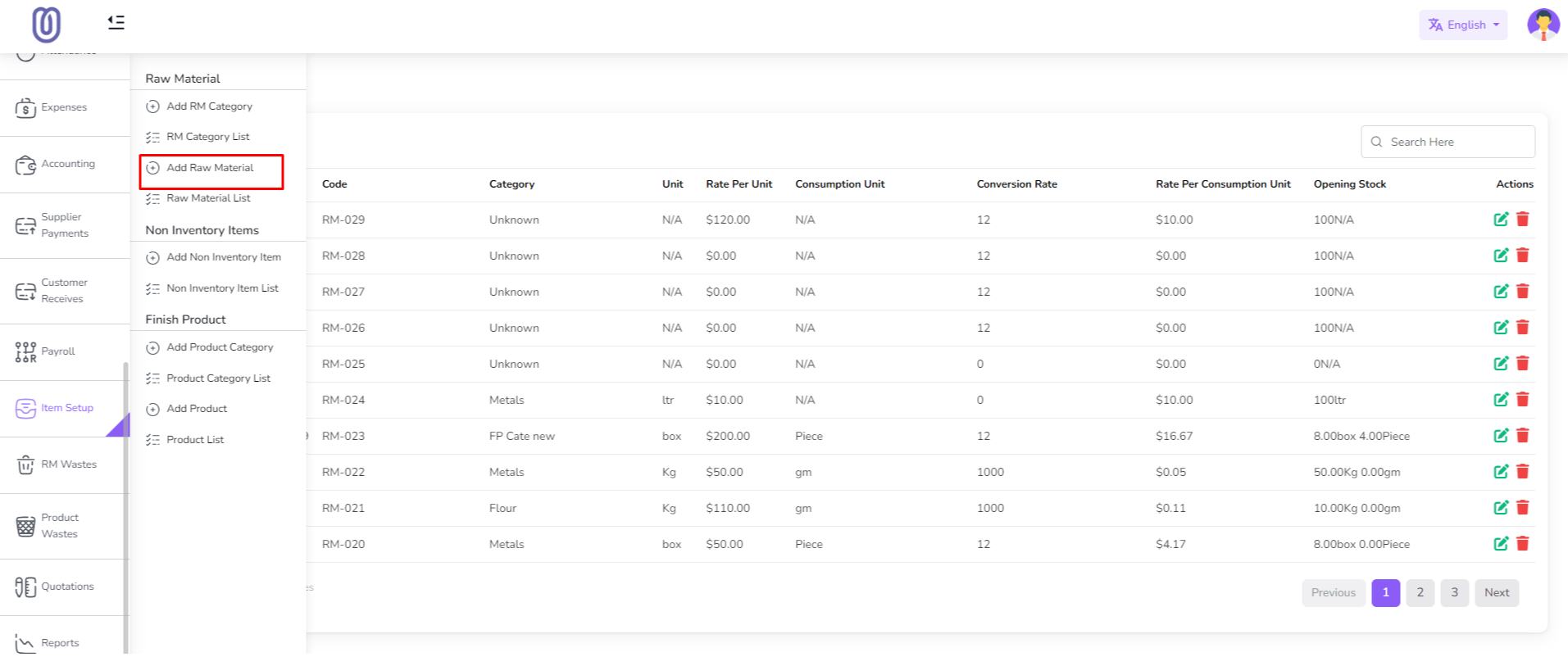
To add a new Raw Material, click on the "Add Raw Material" from the sidebar menu.
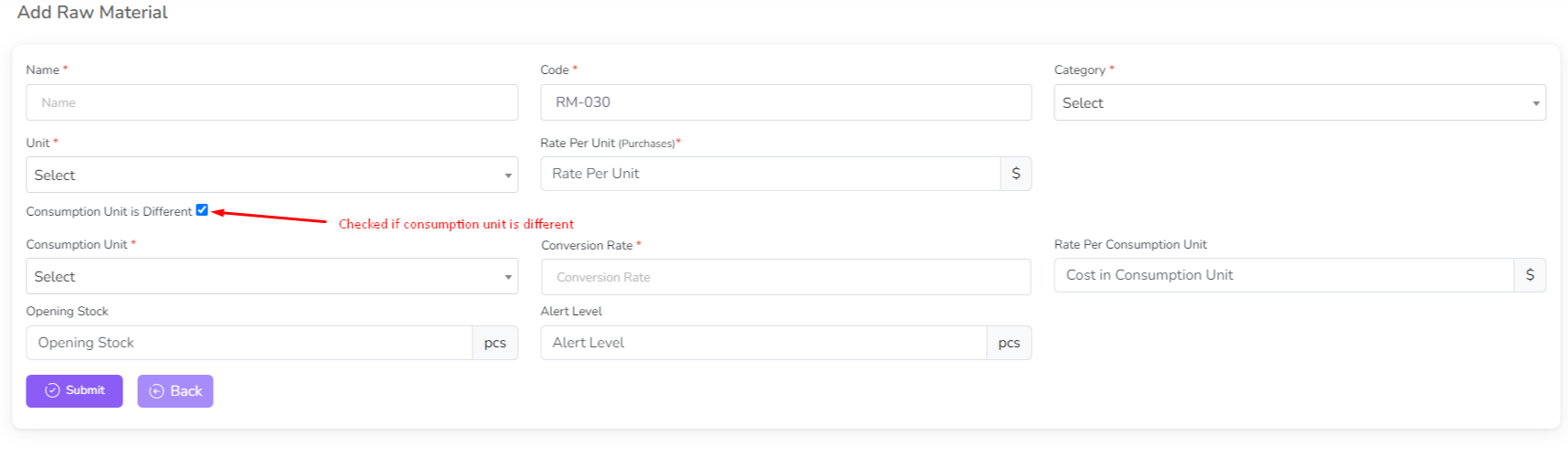
Fill the Raw Material details, select the Raw Material Category. Also if your purchase unit and sale unit is different then you need to check "Consumption Unit is Different" checkbox. After that you can see the consumption unit in the Raw Material row. Select the consumption unit from the dropdown. and type conversion rate. When you type conversion rate system will calculate the purchase price and sale price based on the conversion rate. When you checked "Consumption Unit is Different" checkbox then your opening stock and alert level will be based on the consumption unit.
To edit the Raw Material, click on the "Edit" button from the Raw Material row.
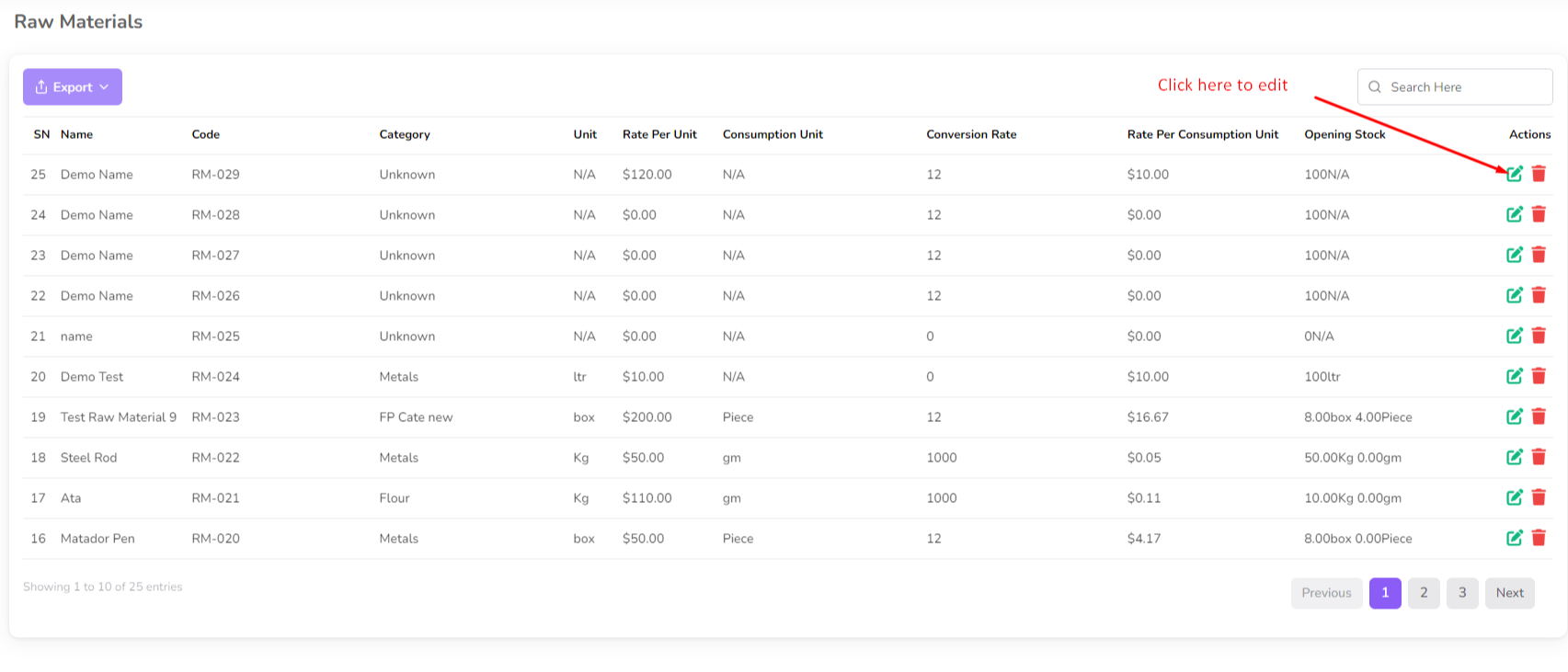
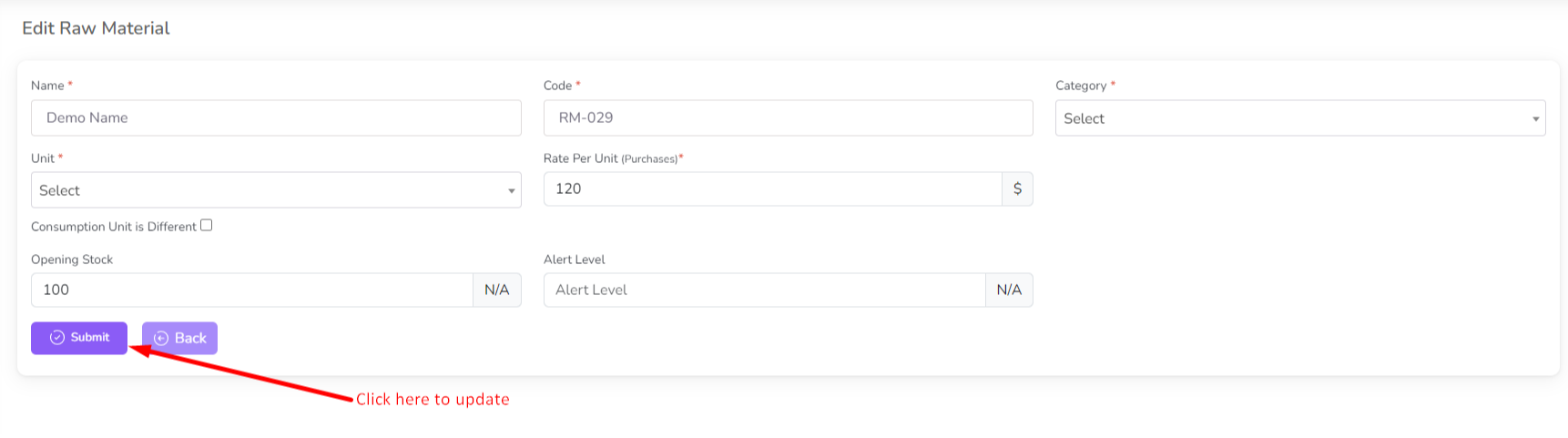
After clicking on the "Edit" button, you can edit the Raw Material details, if needed change the Raw Material Category then select the Raw Material Category and click on the "Submit" button to save the changes.
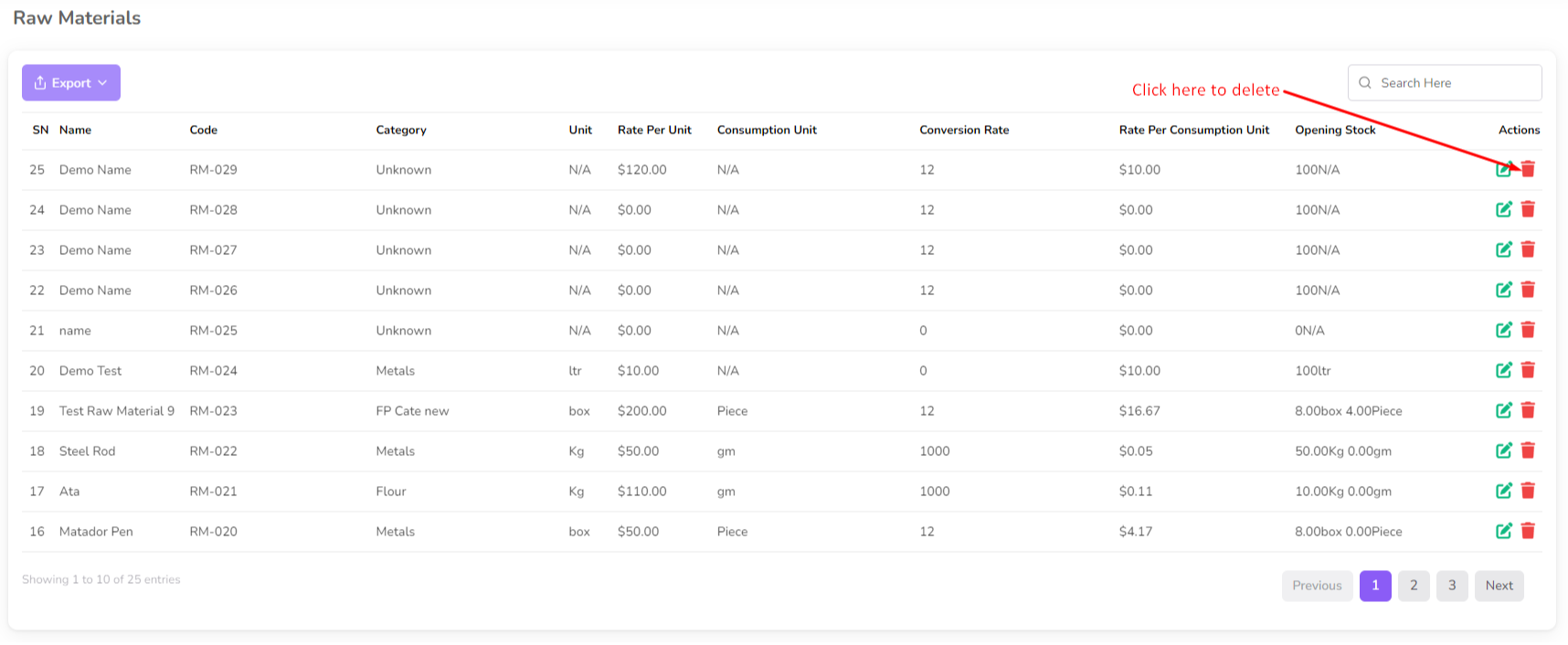
To delete the Raw Material, click on the "Delete" button from the Raw Material row.
Was this page helpful?
Thank you for your feedback!
Please Login First
Zimozo - Support Ticketing, Knowledgebase, Live Chat and CRM
Comments (00)