.png)
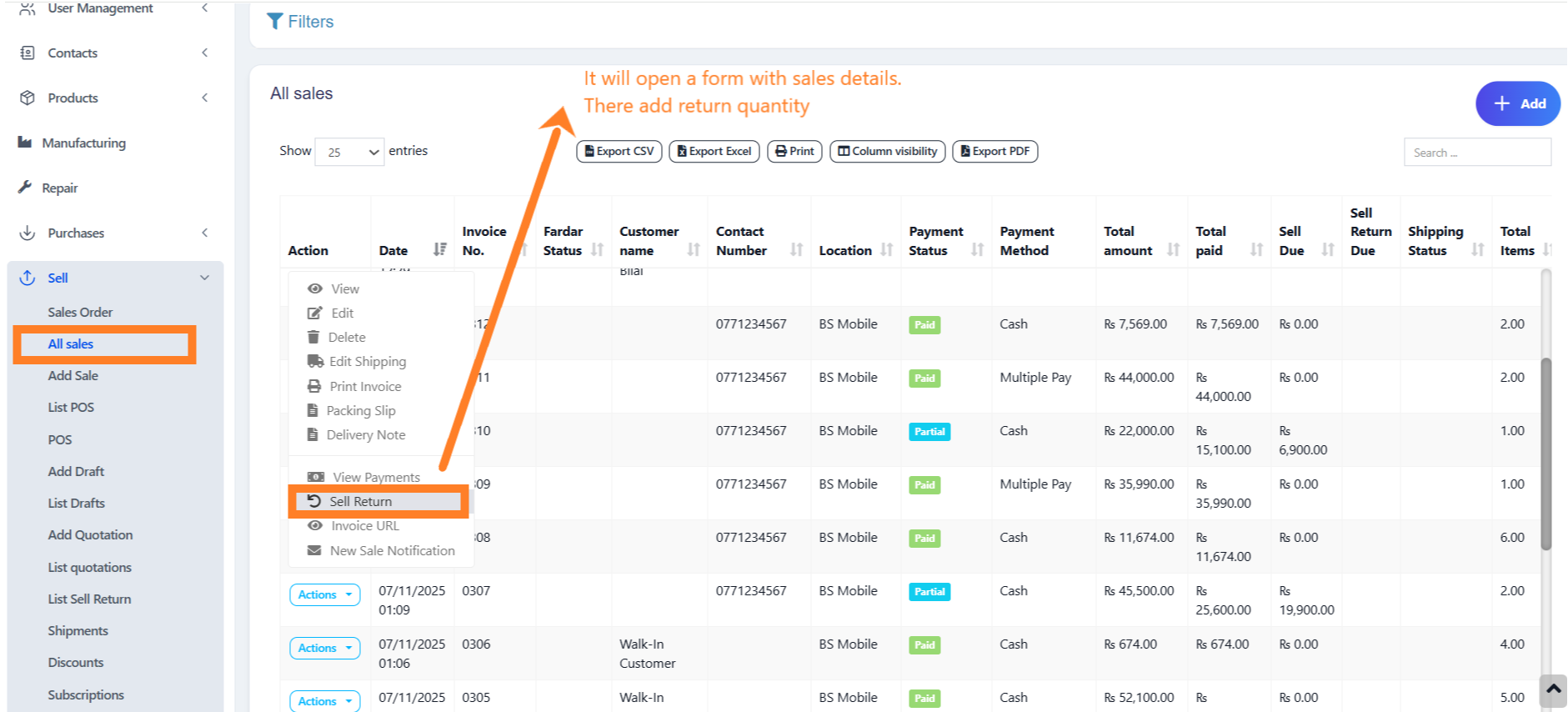
There are 2 ways of adding sales return
Edit existing invoice for the sales by going to edit the invoice and remove the product or reduce the quantity of the product. And save it. The system will automatically add the returned quantity back to stock. This is a simple & recommended way of doing.
Follow the screenshot below:
When a Sale Return is created, the system considers the return amount as a Due Payment—indicating that the amount needs to be refunded to the customer.
To complete the return process, you must add a payment to record the refund.
To add the payment for sale return, follow the steps.
Go to Sales → List Sale Return.
In the list, locate the Payment Status column for each sale return entry.
If the status shows Due, click on the Due button.
This will open an Add Payment pop-up window.
Enter the Refund Amount and click Save.
The Payment Status will now update to Paid.
Was this page helpful?
Thank you for your feedback!
Please Login First
Zimozo - Support Ticketing, Knowledgebase, Live Chat and CRM
Comments (00)