.png)
To add a new invoice layout:
To use an invoice layout in a location go to” Business Locations -> Edit” and assign the invoice layout.
Used for browser-based printing only & NOT print server-based printing.
To manually change the code for invoice layout the path is: resources/views/sale_pos/receipts/{design_name}.blade.php
Where design_name = name of the design you want to change like classic/elegant/detailed/slim etc.
To see the tax summary in invoice, go to add/edit invoice layout, and enter the “Tax Summary Label” option and it will show the tax summary in invoice.
To display total in words in the invoice Enable:
To display the discounted unit price and discount amount in the invoice, enable the following filed in invoice layout
To display the reduction summary of quantity from multiple units, enable the check box ‘show base unit details (If applicable)’.
If you have added multiple units in your system, you can display the relation of the base and multiple units in the invoice.
For example, if 1 dozen = 12 pieces. Then you can display it in the invoice with the price.
To achieve this, follow the steps given below
Step 1: Go to Settings > Invoice Settings > Invoice Layout.
Step 2: Enable the ‘Show base unit details’ checkbox.
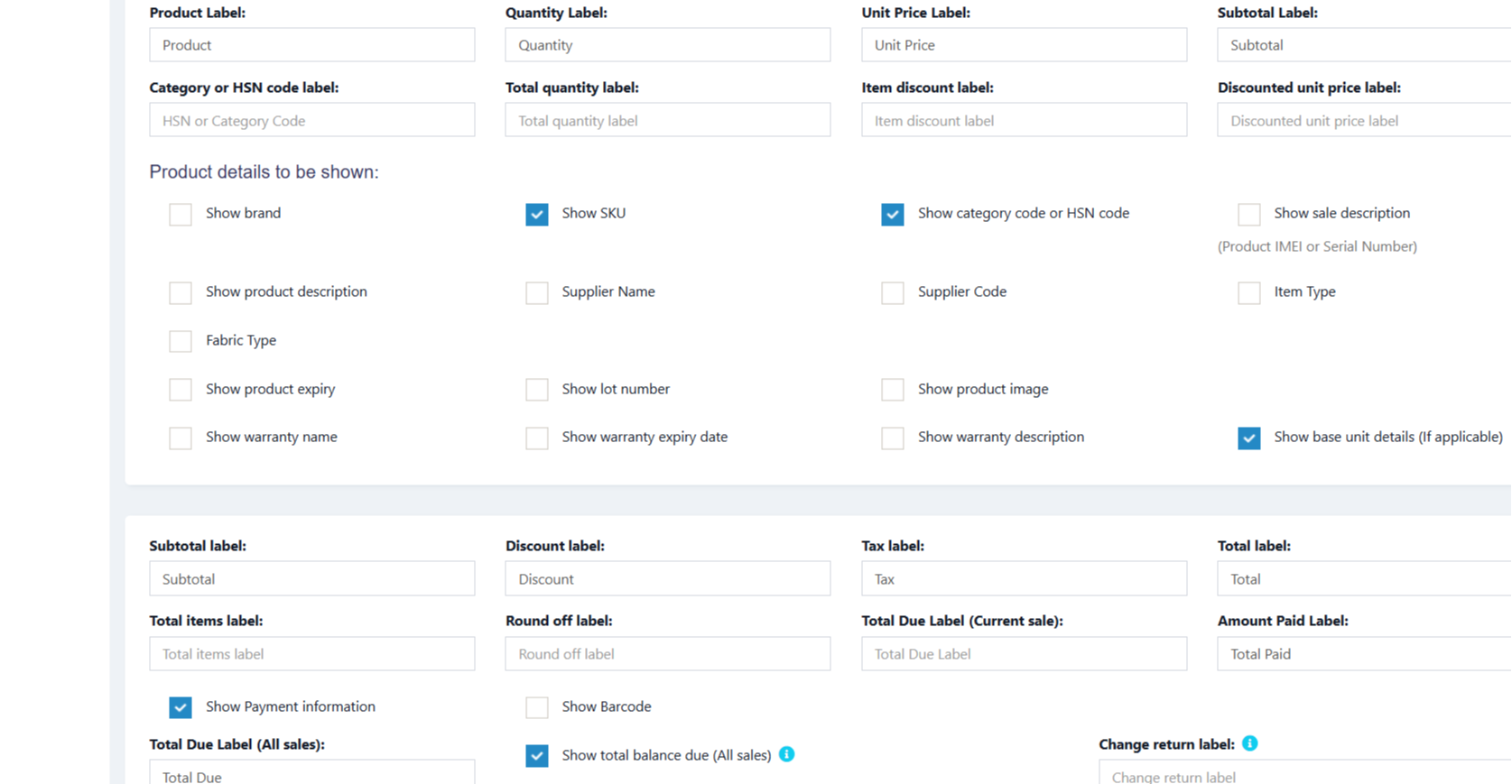
Now, if you select a multiple unit the details will be displayed in the invoice.
The sale custom fields can be added to the printed invoice.
Step 1: To achieve it, Go to Settings > Invoice Settings > Invoice Layout.
Step 2: Select the invoice layout in which you need the sale custom fields to be printed.
Step 3: Enable the checkboxes for the sell custom fields, “sell 1”, “sell2” etc, and save it.
Now, when you use this chosen invoice layout, the custom fields you set up for sales will automatically appear on the printed invoice.
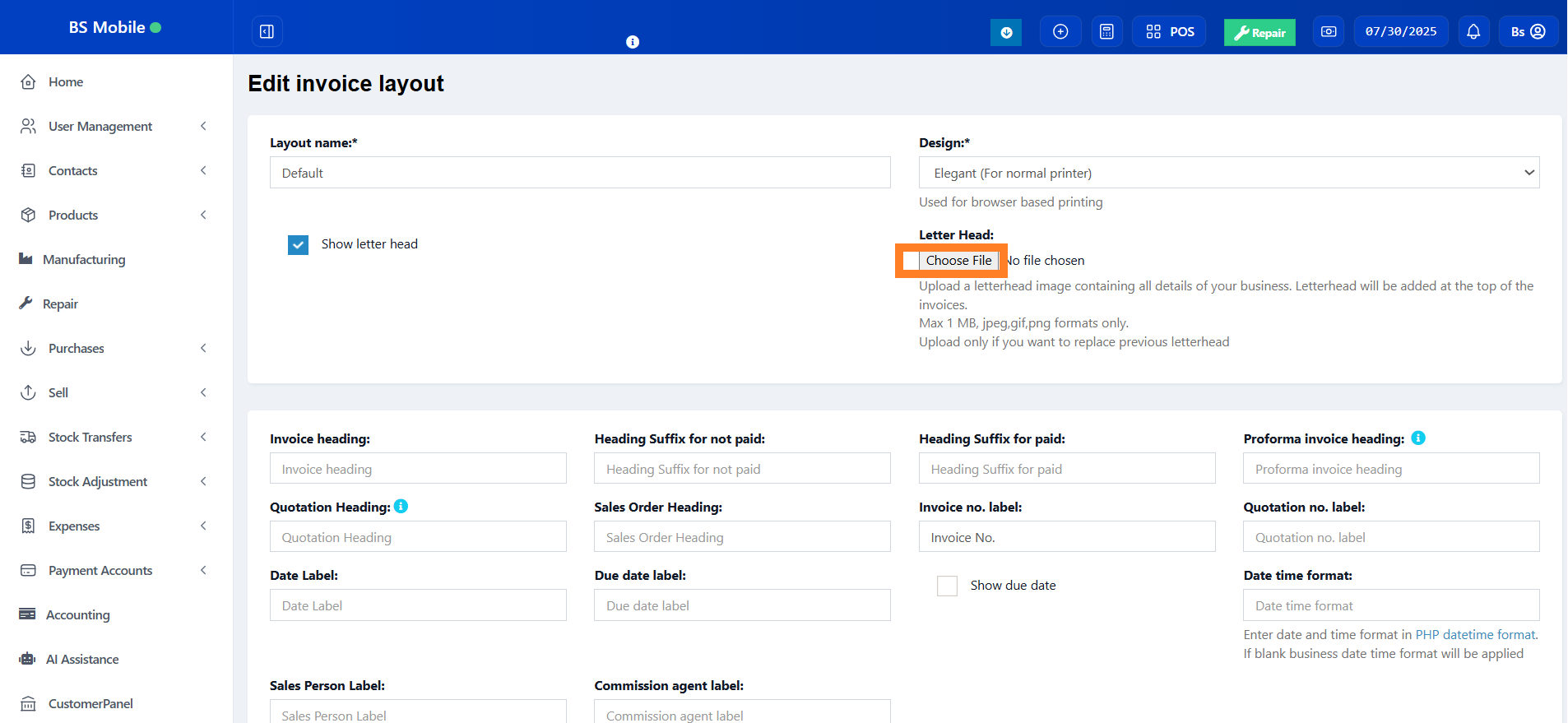
A letterhead image containing all details of your business(organization name, address, business registration & other details) can be added to invoices.
Letterhead will be displayed at the top portion of the invoices.
Was this page helpful?
Thank you for your feedback!
Please Login First
Zimozo - Support Ticketing, Knowledgebase, Live Chat and CRM
Comments (00)