.png)
1.To enable expiry go to Settings -> Business Settings -> Product section. And check the “Enable Product Expiry” checkbox.
2. On enabling Product expiry, you can choose either “Add Item Expiry” or “Add manufacturing date & Expiry Period”
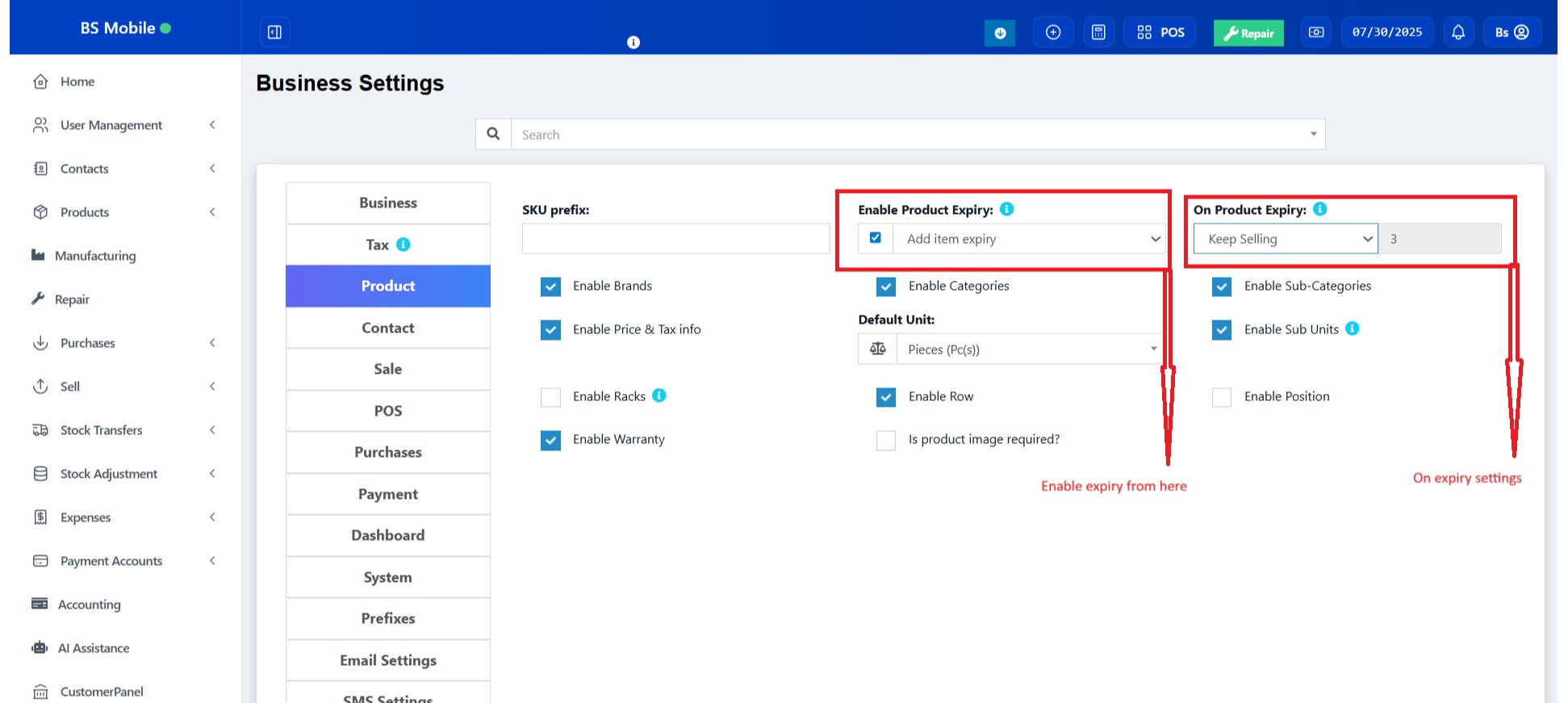
3. “On Product Expiry” => With this option you can set what the system should do when a product expired.
4. “Stock Accounting Method” => This feature is used to set the way the product should be sold.
For an Example:
1. Purchase 20 pcs of product A on 20 March 2018. Expiry date 10 April 2018
2. Purchase 20 pcs of the same product A on 23 March 2018. Expiry date 8 April 2018
3. Today I sold 22 pcs.
If the “Stock Accounting Method” is FIFO => Then the Product purchased on 20 March 2018 will be deduced with 20 pcs and after that product purchase on 23 March 2018 will be deduced with 2 pcs.
So in stock, we will have products from 23 March 2018 with 18 pcs.
If the “Stock Accounting Method” is LIFO => The opposite of the above will happen.
NOTE: You must set the required accounting method before selling the item for that accounting method to be used.
1. Go to Reports => Stock Expiry Reports.
2. Here you can filter stock “Category”, Brands, “Stock expiry date”
3. Click on “Edit” to modify the stock left and expiry period.
4. If stock left is decreased the unit purchase price is adjusted accordingly.
– You can view stock expiry alert in Homepage bottom section. Here it shows a list of products expiring soon.
– You can set the number of days before which the expiry alter should be shown in the Homepage from “Settings -> Business Settings -> Dashboard Section” View Stock Expiry Alert For input field.
Was this page helpful?
Thank you for your feedback!
Please Login First
Zimozo - Support Ticketing, Knowledgebase, Live Chat and CRM
Comments (00)