.png)
Your cash drawer can be configured to automatically open when you print a receipt for each transaction. Here are the steps you can take to configure your cash drawer.
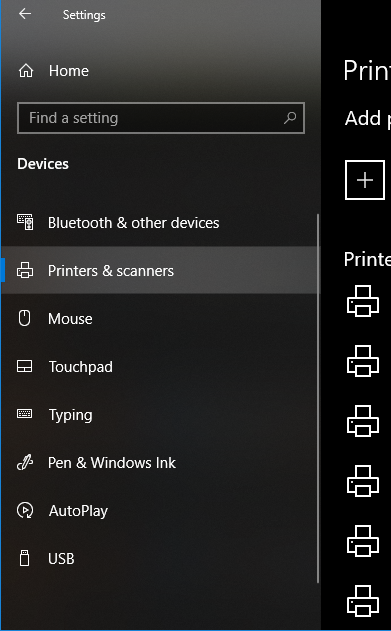
2.Select the printer you’d like to configure, and click on the Manage button.
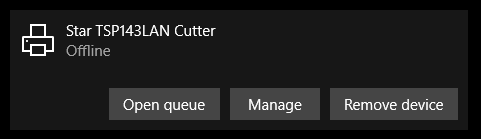
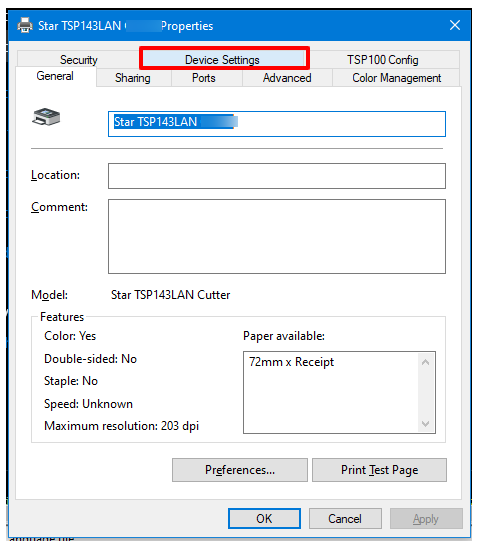
2.Next, click on the Printer Properties link and a window will open. From here, select the Device Settings tab.
3.Under Installable Options, find the Peripheral Unit Type and change it to ‘Cash Drawer’.
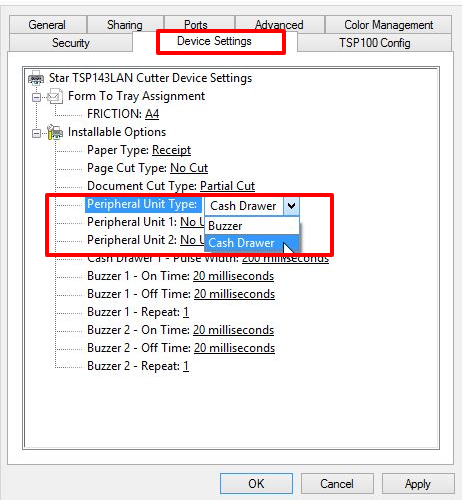
4.Change the Peripheral Unit 1 and Peripheral Unit 2 fields to ‘Document Bottom’ to have the drawer open after the receipt starts printing.
If you want the cash drawer to trigger before the receipt prints, select ‘Document Top’ in Peripheral Unit 1 and 2
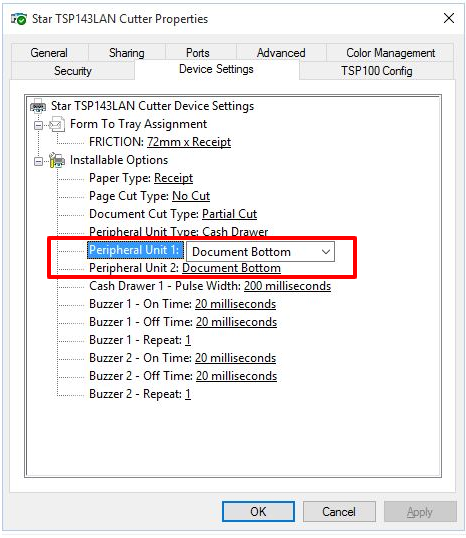
5.Click OK to save these settings and perform a test sale to see if it’s been configured properly.
Was this page helpful?
Thank you for your feedback!
Please Login First
Zimozo - Support Ticketing, Knowledgebase, Live Chat and CRM
Comments (00)